
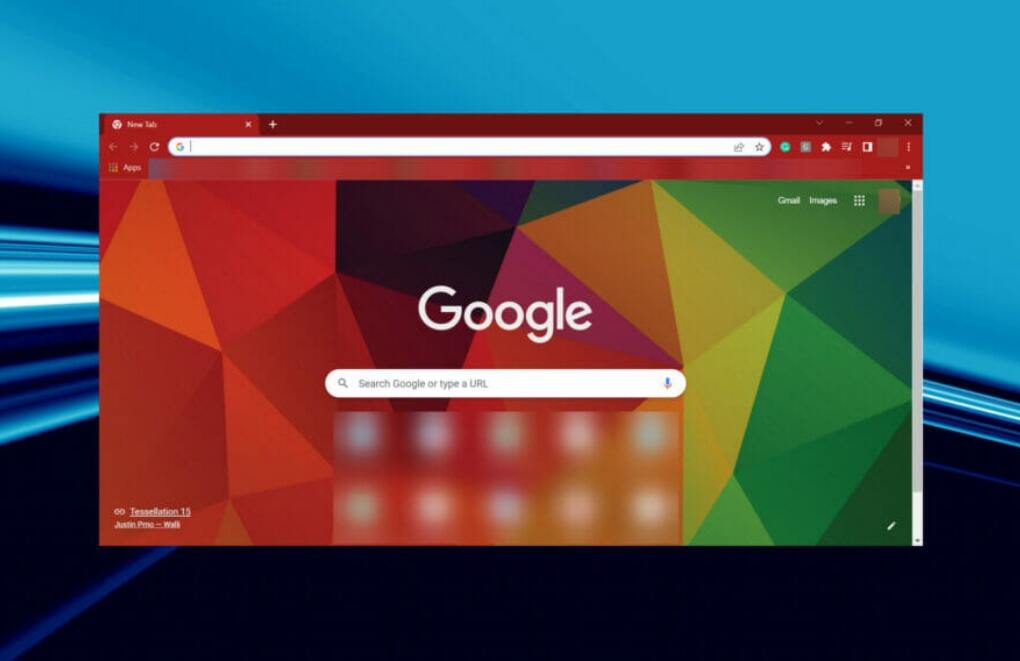
How to Customize Google Chrome on Your Desktop
Google Chrome is one of the most popular web browsers in the world, and for good reason. It’s fast, secure, and easy to use. But what many people don’t know is that Chrome is also highly customizable. You can change the look and feel of Chrome to match your personal style, and you can even add features and extensions to make it even more powerful.
In this article, we’ll show you how to customize Google Chrome on your desktop. We’ll cover everything from changing the theme to adding extensions. So whether you’re looking to give Chrome a fresh new look or you want to add some extra functionality, we’ve got you covered.
Changing the Theme
One of the easiest ways to customize Chrome is to change the theme. Chrome comes with a variety of built-in themes, or you can download themes from the Chrome Web Store. To change the theme, open Chrome and click on the three dots in the top right corner of the window. Then, select “Settings.”
Under the “Appearance” section, you’ll see a list of available themes. Click on the theme you want to use, and Chrome will automatically change its appearance.
Adding Extensions
Extensions are add-ons that can add new features and functionality to Chrome. There are extensions for everything from blocking ads to improving productivity. To add an extension, open Chrome and go to the Chrome Web Store. Search for the extension you want, and then click on the “Add to Chrome” button.
Once the extension is installed, you’ll see a new icon in the Chrome toolbar. Click on the icon to open the extension’s settings.
Here are a few popular extensions to get you started:
- AdBlock: Blocks ads on websites.
- Grammarly: Checks your grammar and spelling.
- Honey: Finds coupon codes for websites.
- OneTab: Collapses all open tabs into a single list.
Conclusion
These are just a few of the many ways you can customize Google Chrome on your desktop. With a little creativity, you can make Chrome look and feel exactly the way you want it to. So go ahead and experiment with different settings and extensions until you find the perfect combination for you.
